From Our New Site

Our new Website

Our New Website : www.grandapk.blogspot.com

Saturday, December 29, 2012

Best Free Web Browser for Android (Direct Download Links Are Available)

Download Best Free Web Browser for Android:

Various factors may affect the decision as to your final browser. I discuss these factors in more depth below, and then will try to offer a review of every browser. I plan to extend the reviews over time, in response to feedback and experience, so do check back or leave a comment below if there's something you would like to see.

Limiting Factors

1. Small screen size & resolution.

The smaller the screen, the more important it is that your browser does not waste any of that valuable screen real estate with superfluous buttons. If screen size is limited, you may in fact find that the built in browser is best customised to work with your hardware restrictions. If you want to try alternatives though, features like full screen mode and good zoom and pan controls are a must. The ability to effectively re-wrap text to fit within the screen as you zoom will also be essential.
1st Choice:         Dolphin Mini
Alternative:        Opera Mini

2. Low powered device

On a low powered device, you want the browser to load quickly and add the minimum of overhead. You may well be best ignoring features such as Flash (often resource hungry) and add-ons in order to obtain snappy browsing speeds
1st Choice:   Dolphin Mini
Alternative:  Opera Mini

3. Limited data connection speed/limit

Websites are getting bigger...
In the early years of the Internet when dial up modems were the norm, website designers would spend hours honing their sites to be the smallest possible, to ensure a speedy experience for their users. With the advent of cheap broadband that is largely no longer the case. Instead designers seem sometimes locked in a battle to see how many images and flashing ads they can fit on one page at once!
However, on a mobile, data speeds can still be in dial up modem territory. Whilst 3G and (in some places) 4G have helped, the extra speed often comes with a pathetically small data limit, even on so called 'unlimited' data plans.
If you regularly browse image laden websites, or spend all your time watching YouTube videos, you might find that you hit your data cap sooner rather than later. If you're lucky, you'll just be limited to a slower speed until the end of the month - if you're not so lucky you'll suddenly find charges on your bill for the extra data.
Some of the browsers below attempt to help, by collecting the pages for you on their servers, compressing larger images and files, then squirting the smaller, leaner file to your mobile device. In most cases, you won't notice the quality difference, but you may notice the faster load times.
If you are on a very small data cap, or need the fastest browsing you can on a slow data speed, then the clear choice here is Opera Mini (or Opera Mobile if the phone is more capable). Both these browsers include the 'Opera Turbo' technology, which aims to reduce the amount of data each webpage uses.
Note: For the privacy conscious amongst you, the Opera Turbo technology means in effect that Opera acts as a 'proxy' for your connection and could, in theory, read everything your browser shows. If you are using secured browsing (https://) websites then the connection is direct and this cannot happen. In practice, this is unlikely to be an issue for many, but it is something to be aware of.
1st Choice:    Opera Mini
Alternative:   Opera Mobile

4. Current desktop ecosystem

It may not appear initially relevant, but this factor could end up being the decisive factor in your choice. If you run a  particular browser on your main computer, and want to sync bookmarks easily between your PC and android device, then you will need to choose one that is compatible. In most cases that will mean using the same software on both, although in a few cases there are workarounds.
In general however, the Opera Android browser will only sync with the Opera desktop browser, Firefox and Chrome likewise.
You may need to decide whether the ability to sync bookmarks is important to you. If you tend not to browse the same pages on both, or in fact specifically want to keep the bookmarks separate, then you can ignore this factor entirely when making your decision.
If you do want to sync though, bear in mind that when browsing certain sites on your Android device, the site may detect you are using a mobile browser and serve up a different page without some of the frills, giving you a different experience. There are ways to avoid this, although often the mobile pages are easier to use on a smaller device and more touch friendly.
There are alternatives that will synchronise your bookmarks between any browser but they are generally not free and so outside the scope of this website.
1st Choice: dependent on users' needs

5. Compatibility / Accessibility

For some, the websites you surf will restrict your choice of browser. Particularly in corporate environments, internal web apps may only work on certain browsers. Services such as banks, which require you to log in, may not work well on certain mobile browsers, if at all. Many browsers are also not well adapted to those with accessibility issues, such as limited vision, poor finger control. In this area, the reviewers' knowledge is limited so any suggestions, comments or experience is welcomed in the comments below. In general however, it may be that Dolphin Browser is the one to work best here, purely because it has so many add-ons, some of which may make it easier to customise the browser to your specific needs
1st Choice: Dolphin Browser HD
 
Reviews
Below are the ongoing reviews. However, I plan to add to these in the coming weeks. Currently on my list to review are:
  • Maxthon Mobile
  • Skyfire
  • Firefox
  • Chrome (beta - Android 4+ only)
If anyone has others to suggest, I'm happy to add them. Please comment below.

Opera MobileOpera Mobile is still the browser to beat for all round performance, reliability and ease of use. The experience Opera have from their desktop browser shines through with simple touches that make all the difference to an excellent browsing experience. When scrolling in a long page, a simple 'jump to top/bottom' navigation button will pop up. If clicking on an area with several links, the browser will automatically zoom in to allow you to choose the correct link.
Along with that it has the most reliable Flash support in my experience, multi-tab browsing, a simple user interface, full bookmark and browsing history support, a built in download manager, the ability to save a page for future reading, and Opera's 'Turbo' feature, using their servers to compress your pages and images to save on download times and data costs. If you only have one browser on your Android device, it should be this one.
The only criticisms are slightly confusing management of multiple tabs and a lack of add-ons, along with no quickly accessible full screen mode.

Opera MiniOpera Mini is designed as a fast and light browser for those who have slow download speeds or high data costs. As pages are browsed, Opera's servers fetches them and compresses images to provide a faster browsing experience. This does require accepting Opera's ability to protect your privacy, although all the evidence is that they do (and https secure browsing is always encrypted end to end). It doesn't offer Flash support, but if you are in a poor connection area or want to manage your download then Opera Mini is a good choice as it has most of the features of its bigger brother and runs on practically any device of any age.
The drawback is that some more advanced pages will not render correctly and Flash/video is not an option. You must also accept the privacy implications of retrieving all your data through Opera's servers, although this is unlikely to be a major issue for most.

Dolphin Browser HDDolphin Browser HD has long been a fixture on the Android platform and they have always tried to keep ahead of the pack by adding features. They also supply Dolphin Mini (see below) but this is their most powerful offering, with all the features you would expect on a mobile browser and many you might not.
The app features easy multi-tab browsing, excellent bookmark and browsing history support, multi-touch zooming, simple navigation, Flash and HTML5 support, versatile add-ons, gesture control and a unique 'Sonar' voice recognition feature.
The interface in particular is excellent, with a swipe from the left side of the screen opening a bookmarks/history menu, and a swipe from the right giving you immediate access to installed add-ons
If you like to tinker and want the most features, Dolphin is an excellent choice and the choice of add-ons is impressive.
Note that there have been privacy concerns with Dolphin in the past, although they have addressed them in more recent updates.

Dolphin Browser Mini
Dolphin Browser Mini is the little brother of the full featured HD browser, and is designed to be lighter, simpler, and less resource heavy. Despite this, it still has the same excellent multi-tab browsing, bookmarks management, multi-touch zooming and Flash support with less of the clutter which will appeal to some, especially on slower devices.
If you want to browse almost anything, but without the memory and resource footprint, Dolphin Browser Mini should certainly be high on your list.
The only drawbacks are lack of the excellent add-ons support of its bigger brother, and the slightly less sophisticated interfa

Quick Selection Guide

     Opera Mobile
Gizmo's Freeware award as the best product in its class!

Runs as a stand-alone program on a user's computer
Easy to use layout and menu system - Fast Performance - Tabs support - Full Flash support & Good HTML5 Support - Excellent text wrap and useful navigation buttons
Occasional issues with stability on some devices - No Add in support - Only syncs with Opera on desktop
Download: Direct Download Link
http://www.opera.com/mobile/  
12.00
14MB
Unrestricted freeware
There is no portable version of this product available.
Android 1.6+

Flash support may depend on specific device
     Dolphin Browser HD  
Runs as a stand-alone program on a user's computer
multi-tab browsing, bookmarking and syncing, Flash and HTML5 support, versatile add-ons, Easy bookmark management and access, extensive feature set and regular updates.

bloated features may cause slow performance, occasional glitches with Flash playback, potential privacy concerns
Download: Direct Download Link
8.0.1
3.0 MB
Unrestricted freeware
Android 2.01 +
Runs as a stand-alone program on a user's computer

Small footprint, fast performance, intuitive layout, Flash support

Limited browser syncing to desktop, privacy concerns for some (see review)
Download:Direct Download Link
http://www.dolphin-browser.com    
2.3
1,014k
Unrestricted freeware
There is no portable version of this product available.
Android 1.6 +
      Opera Mini  
Runs as a stand-alone program on a user's computer

Fast and resource light - Opera compression technology to reduce data usage - Tab support - Supports 96 languages

No Flash or HTML 5 support. Doesn't re-flow Text
http://www.opera.com/mobile/
Download:Direct Downlaod here 
7.0.29703
857k
Unrestricted freeware
There is no portable version of this product available.
Android


Tags
best free browser for android, best free mobile web browser, top free mobile web browser, best free web browser for mobile device, free browser for smart phones running android,web browsers,opera android,android opera mini,dolphin android,dolphin hd browser,android browser download links.


Download Best Free Web Browser for Android:

Various factors may affect the decision as to your final browser. I discuss these factors in more depth below, and then will try to offer a review of every browser. I plan to extend the reviews over time, in response to feedback and experience, so do check back or leave a comment below if there's something you would like to see.

Limiting Factors

1. Small screen size & resolution.

The smaller the screen, the more important it is that your browser does not waste any of that valuable screen real estate with superfluous buttons. If screen size is limited, you may in fact find that the built in browser is best customised to work with your hardware restrictions. If you want to try alternatives though, features like full screen mode and good zoom and pan controls are a must. The ability to effectively re-wrap text to fit within the screen as you zoom will also be essential.
1st Choice:         Dolphin Mini
Alternative:        Opera Mini

2. Low powered device

On a low powered device, you want the browser to load quickly and add the minimum of overhead. You may well be best ignoring features such as Flash (often resource hungry) and add-ons in order to obtain snappy browsing speeds
1st Choice:   Dolphin Mini
Alternative:  Opera Mini

3. Limited data connection speed/limit

Websites are getting bigger...
In the early years of the Internet when dial up modems were the norm, website designers would spend hours honing their sites to be the smallest possible, to ensure a speedy experience for their users. With the advent of cheap broadband that is largely no longer the case. Instead designers seem sometimes locked in a battle to see how many images and flashing ads they can fit on one page at once!
However, on a mobile, data speeds can still be in dial up modem territory. Whilst 3G and (in some places) 4G have helped, the extra speed often comes with a pathetically small data limit, even on so called 'unlimited' data plans.
If you regularly browse image laden websites, or spend all your time watching YouTube videos, you might find that you hit your data cap sooner rather than later. If you're lucky, you'll just be limited to a slower speed until the end of the month - if you're not so lucky you'll suddenly find charges on your bill for the extra data.
Some of the browsers below attempt to help, by collecting the pages for you on their servers, compressing larger images and files, then squirting the smaller, leaner file to your mobile device. In most cases, you won't notice the quality difference, but you may notice the faster load times.
If you are on a very small data cap, or need the fastest browsing you can on a slow data speed, then the clear choice here is Opera Mini (or Opera Mobile if the phone is more capable). Both these browsers include the 'Opera Turbo' technology, which aims to reduce the amount of data each webpage uses.
Note: For the privacy conscious amongst you, the Opera Turbo technology means in effect that Opera acts as a 'proxy' for your connection and could, in theory, read everything your browser shows. If you are using secured browsing (https://) websites then the connection is direct and this cannot happen. In practice, this is unlikely to be an issue for many, but it is something to be aware of.
1st Choice:    Opera Mini
Alternative:   Opera Mobile

4. Current desktop ecosystem

It may not appear initially relevant, but this factor could end up being the decisive factor in your choice. If you run a  particular browser on your main computer, and want to sync bookmarks easily between your PC and android device, then you will need to choose one that is compatible. In most cases that will mean using the same software on both, although in a few cases there are workarounds.
In general however, the Opera Android browser will only sync with the Opera desktop browser, Firefox and Chrome likewise.
You may need to decide whether the ability to sync bookmarks is important to you. If you tend not to browse the same pages on both, or in fact specifically want to keep the bookmarks separate, then you can ignore this factor entirely when making your decision.
If you do want to sync though, bear in mind that when browsing certain sites on your Android device, the site may detect you are using a mobile browser and serve up a different page without some of the frills, giving you a different experience. There are ways to avoid this, although often the mobile pages are easier to use on a smaller device and more touch friendly.
There are alternatives that will synchronise your bookmarks between any browser but they are generally not free and so outside the scope of this website.
1st Choice: dependent on users' needs

5. Compatibility / Accessibility

For some, the websites you surf will restrict your choice of browser. Particularly in corporate environments, internal web apps may only work on certain browsers. Services such as banks, which require you to log in, may not work well on certain mobile browsers, if at all. Many browsers are also not well adapted to those with accessibility issues, such as limited vision, poor finger control. In this area, the reviewers' knowledge is limited so any suggestions, comments or experience is welcomed in the comments below. In general however, it may be that Dolphin Browser is the one to work best here, purely because it has so many add-ons, some of which may make it easier to customise the browser to your specific needs
1st Choice: Dolphin Browser HD
 
Reviews
Below are the ongoing reviews. However, I plan to add to these in the coming weeks. Currently on my list to review are:
  • Maxthon Mobile
  • Skyfire
  • Firefox
  • Chrome (beta - Android 4+ only)
If anyone has others to suggest, I'm happy to add them. Please comment below.

Opera MobileOpera Mobile is still the browser to beat for all round performance, reliability and ease of use. The experience Opera have from their desktop browser shines through with simple touches that make all the difference to an excellent browsing experience. When scrolling in a long page, a simple 'jump to top/bottom' navigation button will pop up. If clicking on an area with several links, the browser will automatically zoom in to allow you to choose the correct link.
Along with that it has the most reliable Flash support in my experience, multi-tab browsing, a simple user interface, full bookmark and browsing history support, a built in download manager, the ability to save a page for future reading, and Opera's 'Turbo' feature, using their servers to compress your pages and images to save on download times and data costs. If you only have one browser on your Android device, it should be this one.
The only criticisms are slightly confusing management of multiple tabs and a lack of add-ons, along with no quickly accessible full screen mode.

Opera MiniOpera Mini is designed as a fast and light browser for those who have slow download speeds or high data costs. As pages are browsed, Opera's servers fetches them and compresses images to provide a faster browsing experience. This does require accepting Opera's ability to protect your privacy, although all the evidence is that they do (and https secure browsing is always encrypted end to end). It doesn't offer Flash support, but if you are in a poor connection area or want to manage your download then Opera Mini is a good choice as it has most of the features of its bigger brother and runs on practically any device of any age.
The drawback is that some more advanced pages will not render correctly and Flash/video is not an option. You must also accept the privacy implications of retrieving all your data through Opera's servers, although this is unlikely to be a major issue for most.

Dolphin Browser HDDolphin Browser HD has long been a fixture on the Android platform and they have always tried to keep ahead of the pack by adding features. They also supply Dolphin Mini (see below) but this is their most powerful offering, with all the features you would expect on a mobile browser and many you might not.
The app features easy multi-tab browsing, excellent bookmark and browsing history support, multi-touch zooming, simple navigation, Flash and HTML5 support, versatile add-ons, gesture control and a unique 'Sonar' voice recognition feature.
The interface in particular is excellent, with a swipe from the left side of the screen opening a bookmarks/history menu, and a swipe from the right giving you immediate access to installed add-ons
If you like to tinker and want the most features, Dolphin is an excellent choice and the choice of add-ons is impressive.
Note that there have been privacy concerns with Dolphin in the past, although they have addressed them in more recent updates.

Dolphin Browser Mini
Dolphin Browser Mini is the little brother of the full featured HD browser, and is designed to be lighter, simpler, and less resource heavy. Despite this, it still has the same excellent multi-tab browsing, bookmarks management, multi-touch zooming and Flash support with less of the clutter which will appeal to some, especially on slower devices.
If you want to browse almost anything, but without the memory and resource footprint, Dolphin Browser Mini should certainly be high on your list.
The only drawbacks are lack of the excellent add-ons support of its bigger brother, and the slightly less sophisticated interfa

Quick Selection Guide

     Opera Mobile
Gizmo's Freeware award as the best product in its class!

Runs as a stand-alone program on a user's computer
Easy to use layout and menu system - Fast Performance - Tabs support - Full Flash support & Good HTML5 Support - Excellent text wrap and useful navigation buttons
Occasional issues with stability on some devices - No Add in support - Only syncs with Opera on desktop
Download: Direct Download Link
http://www.opera.com/mobile/  
12.00
14MB
Unrestricted freeware
There is no portable version of this product available.
Android 1.6+

Flash support may depend on specific device
     Dolphin Browser HD  
Runs as a stand-alone program on a user's computer
multi-tab browsing, bookmarking and syncing, Flash and HTML5 support, versatile add-ons, Easy bookmark management and access, extensive feature set and regular updates.

bloated features may cause slow performance, occasional glitches with Flash playback, potential privacy concerns
Download: Direct Download Link
8.0.1
3.0 MB
Unrestricted freeware
Android 2.01 +
Runs as a stand-alone program on a user's computer

Small footprint, fast performance, intuitive layout, Flash support

Limited browser syncing to desktop, privacy concerns for some (see review)
Download:Direct Download Link
http://www.dolphin-browser.com    
2.3
1,014k
Unrestricted freeware
There is no portable version of this product available.
Android 1.6 +
      Opera Mini  
Runs as a stand-alone program on a user's computer

Fast and resource light - Opera compression technology to reduce data usage - Tab support - Supports 96 languages

No Flash or HTML 5 support. Doesn't re-flow Text
http://www.opera.com/mobile/
Download:Direct Downlaod here 
7.0.29703
857k
Unrestricted freeware
There is no portable version of this product available.
Android


Tags
best free browser for android, best free mobile web browser, top free mobile web browser, best free web browser for mobile device, free browser for smart phones running android,web browsers,opera android,android opera mini,dolphin android,dolphin hd browser,android browser download links.


Dolphin Browser® Mini 2.4 Direct Download For Android

Current Version:

2.4
Requires Android: 1.6 and up
Category: Lifestyle
V2.4 update:
Various performance improvements & Bug fixes.
Overview:
Something fast, something simple, something new! It is Dolphin Browser Mini.
Something powerful, something elegant, something valuable! It is Dolphin Browser® Mini.
Something fast, something simple, something new! It is Dolphin Browser Mini.
Browsing made wonderful.
Dolphin Browser® Mini aims at providing a friendly user experience for all of you.
Enjoy this new version now and let us know how it works for you.
Highlights:
*High speed responsibility
*Speed Dial Homepage
*Innovative Menu design
*Infinite tabs browsing
*Intelligent back & forward button
*Powerful Copy Text (Select Text)
Features:
*Gesture
*Multi-tab browsing
*Multi-touch pinch zoom
*Tool Box
*RSS Detection
*Bookmarks sync
*Bookmarks/History/Most Visited
*Flash Support for Froyo
Dolphin Browser™ Mini 1Dolphin Browser™ Mini 2

Download Links For ---->Dolphin Browser® Mini 2.4
Download Direct Link Here
Download From Market here


Tags: Browser, Dolphin, Dolphin Browser Mini, Dolphin Browser Mini apk, Dolphin Browser® Mini 2.4 apk, Dolphin Browser® Mini 2.4 apk download, Dolphin Browser® Mini android apps on google play, Dolphin Browser® Mini app on android market, Dolphin Browser® Mini v2.4, Mini
Current Version:

2.4
Requires Android: 1.6 and up
Category: Lifestyle
V2.4 update:
Various performance improvements & Bug fixes.
Overview:
Something fast, something simple, something new! It is Dolphin Browser Mini.
Something powerful, something elegant, something valuable! It is Dolphin Browser® Mini.
Something fast, something simple, something new! It is Dolphin Browser Mini.
Browsing made wonderful.
Dolphin Browser® Mini aims at providing a friendly user experience for all of you.
Enjoy this new version now and let us know how it works for you.
Highlights:
*High speed responsibility
*Speed Dial Homepage
*Innovative Menu design
*Infinite tabs browsing
*Intelligent back & forward button
*Powerful Copy Text (Select Text)
Features:
*Gesture
*Multi-tab browsing
*Multi-touch pinch zoom
*Tool Box
*RSS Detection
*Bookmarks sync
*Bookmarks/History/Most Visited
*Flash Support for Froyo
Dolphin Browser™ Mini 1Dolphin Browser™ Mini 2

Download Links For ---->Dolphin Browser® Mini 2.4
Download Direct Link Here
Download From Market here


Tags: Browser, Dolphin, Dolphin Browser Mini, Dolphin Browser Mini apk, Dolphin Browser® Mini 2.4 apk, Dolphin Browser® Mini 2.4 apk download, Dolphin Browser® Mini android apps on google play, Dolphin Browser® Mini app on android market, Dolphin Browser® Mini v2.4, Mini

How to Backup and Restore your Data From Google Account In Android

How to Backup and Restore your Data:
Backup and RestoreUsing the Android system, you can automatically back up your data, such as a list of apps you've installed, the words you've added to dictionary, your Wi-Fi passwords, Browser bookmarks and other settings via your Google account on the servers.
  1. Run the app Settings, tap 'Backup & reset' under PERSONAL.
  2. Check both 'Back up my data' and 'Automatic restore' if they're unchecked.
When you need to reset your device or re-install an app which makes use of the backup service, you can then restore your data and settings from your Google account.
How to Backup and Restore your Data:
Backup and RestoreUsing the Android system, you can automatically back up your data, such as a list of apps you've installed, the words you've added to dictionary, your Wi-Fi passwords, Browser bookmarks and other settings via your Google account on the servers.
  1. Run the app Settings, tap 'Backup & reset' under PERSONAL.
  2. Check both 'Back up my data' and 'Automatic restore' if they're unchecked.
When you need to reset your device or re-install an app which makes use of the backup service, you can then restore your data and settings from your Google account.

Friday, December 14, 2012

How to Download Files From Torrentz in Android Mobile.Very-Very Easy!

How to Download Files From Torrentz in Android Mobile.Very-Very Easy!::.
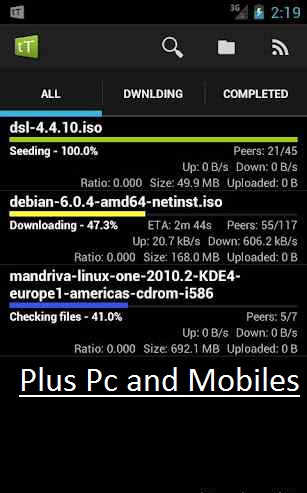
Hello Everybody, Torrrent is now most fames site for downloads.we all are very familiar with torrent as most of the internet user download there file using torrent client. For downloading torrent you need a client installed on PC but now you can easily download torrent file on your smart phone i.e., Android. You just need a tTorrent Lite(Download Below) app installed on your phone and you are done.


Step 1: Download tTorrent Lite Android app [Click Here]

Step 2: Once you have downloaded tTorrent Lite and installed it ion your android device you need to download required torrent file, its obvious that without torrent file what will you download, so do that first and save to your SD card or Phone memory.

Step3: Now open tTorrent Lite app and browse the torrent file which you had downloaded. 


Step 4: Once file is added click on Download tab your download will be started.

Step 5: With tTorrent Lite you can also increase and decrease upload speed.

Note : If you are using Wi-Fi you can also turn it on/off as per requirements.

Writer-Harpeet Insan(Author)
Enj@y W!th Our Site::..
How to Download Files From Torrentz in Android Mobile.Very-Very Easy!::.
Hello Everybody, Torrrent is now most fames site for downloads.we all are very familiar with torrent as most of the internet user download there file using torrent client. For downloading torrent you need a client installed on PC but now you can easily download torrent file on your smart phone i.e., Android. You just need a tTorrent Lite(Download Below) app installed on your phone and you are done.


Step 1: Download tTorrent Lite Android app [Click Here]

Step 2: Once you have downloaded tTorrent Lite and installed it ion your android device you need to download required torrent file, its obvious that without torrent file what will you download, so do that first and save to your SD card or Phone memory.

Step3: Now open tTorrent Lite app and browse the torrent file which you had downloaded. 


Step 4: Once file is added click on Download tab your download will be started.

Step 5: With tTorrent Lite you can also increase and decrease upload speed.

Note : If you are using Wi-Fi you can also turn it on/off as per requirements.

Writer-Harpeet Insan(Author)
Enj@y W!th Our Site::..

Friday, October 5, 2012

Google Trick "I 'am Feeling Lucky" Trick & Direct Open Website Without Web Address.COOL!

Google Trick "I 'am Feeling Lucky" Trick 
And Direct Open Website Without Web Address.COOL!:
 
Goole is No. 1 Search Engine In World.Google is the number one search engine in the world. The popularity of the Google is as much as the word “Google” is becoming a synonym for the word “Search” online.

What Is Google "I 'am Feeling Lucky"?
You might have seen two buttons below the search field in Google homepage, One is “Google Search” and the other one is “I’m Feeling Lucky”. Most of the Google users doesn’t know what is this button used for. This button is used to visit the first search result link directly without going to the search page. I.e. if you enter “Plusmobiles” in the Google search field and click on I’m feeling Lucky button you will be directed to www.plusmobiles.blogspot.com from the Google search homepage.
Google loose $110 Million per year because of this I’m Feeling Lucky trick. Because people use this trick to directly visit the page they are in search of without seeing the search result page. Which will not bring any revenue to the Google by the means of Google Adwords Ads on Search result pages.

Trick Of Google "I 'am Feeling Lucky"(with screenshoots)::.
To get these tricks on Google webpage, Follow these instructions :

Click To Large
  • Turn off Instant search.(Click "Never Show Instat Results")(ScreenShoot Above)
  • Then Click Save.
  • Then Open Google.com
  • In Search Box Type your web site name i.e. plusmobile, facebook or Listed End Of Post or any.(See Screenshot below)
Click To Large
  • And click I’m Feeling Lucky button.
  • Your Site Is Directly Open. 
 Google "I 'am Feeling Lucky" Trick Keywords.(Without " symbols):
  • “Plusmobiles” : Opens www.plusmobiles.blogspot.com directly from the Google Homepage.
  • "Facebook" : Open www.facebook.com.
  • “Google Hacker” : What if someone hacks Google someday? Have a Look.
  • “Google Gravity” : Google Homepage Falling down.
  • “French Military Victories” : Check out.
  • “elgoog” : Mirror Effect on Google.
  • “Google Sphere” : Google Spinning Effect.
  • “Google Loco” : And see something moving around.
  • Or Others..
You can also try these Epic Google, Rainbow google, Annoying Google, Google pacman, Google Magic,Google color (Ex: pink,blue), Early Google, Google Heart Page.
Enj@y With **PlusMobiles.BlogsPot.Com**


Google Trick "I 'am Feeling Lucky" Trick 
And Direct Open Website Without Web Address.COOL!:
 
Goole is No. 1 Search Engine In World.Google is the number one search engine in the world. The popularity of the Google is as much as the word “Google” is becoming a synonym for the word “Search” online.

What Is Google "I 'am Feeling Lucky"?
You might have seen two buttons below the search field in Google homepage, One is “Google Search” and the other one is “I’m Feeling Lucky”. Most of the Google users doesn’t know what is this button used for. This button is used to visit the first search result link directly without going to the search page. I.e. if you enter “Plusmobiles” in the Google search field and click on I’m feeling Lucky button you will be directed to www.plusmobiles.blogspot.com from the Google search homepage.
Google loose $110 Million per year because of this I’m Feeling Lucky trick. Because people use this trick to directly visit the page they are in search of without seeing the search result page. Which will not bring any revenue to the Google by the means of Google Adwords Ads on Search result pages.

Trick Of Google "I 'am Feeling Lucky"(with screenshoots)::.
To get these tricks on Google webpage, Follow these instructions :

Click To Large
  • Turn off Instant search.(Click "Never Show Instat Results")(ScreenShoot Above)
  • Then Click Save.
  • Then Open Google.com
  • In Search Box Type your web site name i.e. plusmobile, facebook or Listed End Of Post or any.(See Screenshot below)
Click To Large
  • And click I’m Feeling Lucky button.
  • Your Site Is Directly Open. 
 Google "I 'am Feeling Lucky" Trick Keywords.(Without " symbols):
  • “Plusmobiles” : Opens www.plusmobiles.blogspot.com directly from the Google Homepage.
  • "Facebook" : Open www.facebook.com.
  • “Google Hacker” : What if someone hacks Google someday? Have a Look.
  • “Google Gravity” : Google Homepage Falling down.
  • “French Military Victories” : Check out.
  • “elgoog” : Mirror Effect on Google.
  • “Google Sphere” : Google Spinning Effect.
  • “Google Loco” : And see something moving around.
  • Or Others..
You can also try these Epic Google, Rainbow google, Annoying Google, Google pacman, Google Magic,Google color (Ex: pink,blue), Early Google, Google Heart Page.
Enj@y With **PlusMobiles.BlogsPot.Com**


How to Speed Up Your Internet Connection And Make Fast Internet Connection

How to Speed Up Your Internet Connection And Make Fast Internet Connection:

These days, with broadband Internet becoming as common as snow, most of us find ourselves blessed with blissful, high speed connections to the online realms. All seems to be going just great; the downloads are fast, browsing is so fast that there is virtually no stoppages, and the online games are completely lag-free. However, things tend to go wrong sometimes. We find our net speeds slower than a sloth. Gaming seems impossible online, downloads seem to take forever to complete, and the general broadband experience leaves a bad taste in the mouth.
Why is my Internet so slow?
There are several factors that can affect your Internet connection negatively. The most common problems include:

Bad Service from Provider:  Believe it or not, Internet speeds tend to vary based on geographic locations. So someone in say, Bristol, may enjoy great speeds from one service provider, while another person using services from the same provider in Manchester, may have a disappointing experience.

Old Operating System and Software: Newer software bring with them updates, enhancements and new features that can drastically improve browsing experience.

Computer Infections: Viruses, malware, and undesirable applications can infect the computer, and slow it down over time.

Old Hardware: Using outdated hardware such as old network peripherals, older cabling, etc. can also reduce speeds considerably.

Security Leaks: This pertains to Wi-Fi (Wireless) users. Your Wi-Fi network, if left unsecured, may easily be hacked into. People close-by, neighbours, etc. could piggyback on your Internet connection, reducing your own speeds.

How do I get my net speeds back to normal?
There are some really simple steps that you could take to find the reason for your slow network speeds, solve the issues, and stop them from reoccurring:
  • Do a Speed Test
    : Determine what speeds you are currently getting, by running a simple online speed test.Run the speed test from different machines that have been tested to be clean and infection-free, if possible. If you get low speeds no matter which system you use, the problem may lie with your Internet provider.
  • Check whether your Wi-Fi Network is secure: Wireless connections are pretty open to risks. If you use a wireless router, you can go to the router’s admin page where you can find a list of the systems connected to your network. You can also set up encryption and a password that prevents unauthorised access to your network. The admin page can be accessed by opening a Web browser and typing the IP address of the router into the address bar. By default, the IP address of modems, routers and the like, tend to be “192.168.1.1″, or “192.168.2.1″. Refer to the router/ modem manual booklets for more details.
  • Check for Improper positioning in case of Wireless Connections: While Wi-Fi is a good choice as its a cable free connection, it can be bogged down by interference from other wireless devices in the area, or by walls and other heave objects coming in the way. Position the computer as close to the router as possible, to ensure maximum bandwidth. If there is a lot of distance between the router and the systems, investing in a parabolic reflector, or a high-gain antenna for the router can help boost the transmission speeds.
  • Check for damaged/ old cables: Damaged cables can cause intermittent connectivity issues, frequent disconnections and several other undesirable effects. Check the network cabling behind your computer for signs of wear and tear. Replace the cables if found to be frayed, torn or damaged in some other way.
  • Update your Operating System & Software: Using an old operating system can increase chances of infection, and not updating regularly used software can open the system to vulnerabilities. Both of these issues can slow down the network speeds drastically. Updating them will help you stay secure online.
  • Install and regularly maintain an Antivirus Solution: Keeping antivirus software installed and frequently updated can go a long way in improving the health of the system, and can also help keep your network safe by using a firewall. A safe and secure network often tends to be less effected by worms, Trojans, etc. This can in turn keep the net speeds healthy.
  • Run Diagnostic Tools: If the net speeds are quite low and the hardware isn’t at fault, then running diagnostic software tools can help determine the problem. Tools such as malware scanners, junk file removers, registry cleaners and so on, can help clean the system and thereby improve the net speeds.
Just taking some simple steps and preventive measures can go a long way in reducing speed bumps on your broadband superhighway.

ENJ@Y WITH  @@PLUS PC AND MOBILES@@
How to Speed Up Your Internet Connection And Make Fast Internet Connection:

These days, with broadband Internet becoming as common as snow, most of us find ourselves blessed with blissful, high speed connections to the online realms. All seems to be going just great; the downloads are fast, browsing is so fast that there is virtually no stoppages, and the online games are completely lag-free. However, things tend to go wrong sometimes. We find our net speeds slower than a sloth. Gaming seems impossible online, downloads seem to take forever to complete, and the general broadband experience leaves a bad taste in the mouth.
Why is my Internet so slow?
There are several factors that can affect your Internet connection negatively. The most common problems include:

Bad Service from Provider:  Believe it or not, Internet speeds tend to vary based on geographic locations. So someone in say, Bristol, may enjoy great speeds from one service provider, while another person using services from the same provider in Manchester, may have a disappointing experience.

Old Operating System and Software: Newer software bring with them updates, enhancements and new features that can drastically improve browsing experience.

Computer Infections: Viruses, malware, and undesirable applications can infect the computer, and slow it down over time.

Old Hardware: Using outdated hardware such as old network peripherals, older cabling, etc. can also reduce speeds considerably.

Security Leaks: This pertains to Wi-Fi (Wireless) users. Your Wi-Fi network, if left unsecured, may easily be hacked into. People close-by, neighbours, etc. could piggyback on your Internet connection, reducing your own speeds.

How do I get my net speeds back to normal?
There are some really simple steps that you could take to find the reason for your slow network speeds, solve the issues, and stop them from reoccurring:
  • Do a Speed Test
    : Determine what speeds you are currently getting, by running a simple online speed test.Run the speed test from different machines that have been tested to be clean and infection-free, if possible. If you get low speeds no matter which system you use, the problem may lie with your Internet provider.
  • Check whether your Wi-Fi Network is secure: Wireless connections are pretty open to risks. If you use a wireless router, you can go to the router’s admin page where you can find a list of the systems connected to your network. You can also set up encryption and a password that prevents unauthorised access to your network. The admin page can be accessed by opening a Web browser and typing the IP address of the router into the address bar. By default, the IP address of modems, routers and the like, tend to be “192.168.1.1″, or “192.168.2.1″. Refer to the router/ modem manual booklets for more details.
  • Check for Improper positioning in case of Wireless Connections: While Wi-Fi is a good choice as its a cable free connection, it can be bogged down by interference from other wireless devices in the area, or by walls and other heave objects coming in the way. Position the computer as close to the router as possible, to ensure maximum bandwidth. If there is a lot of distance between the router and the systems, investing in a parabolic reflector, or a high-gain antenna for the router can help boost the transmission speeds.
  • Check for damaged/ old cables: Damaged cables can cause intermittent connectivity issues, frequent disconnections and several other undesirable effects. Check the network cabling behind your computer for signs of wear and tear. Replace the cables if found to be frayed, torn or damaged in some other way.
  • Update your Operating System & Software: Using an old operating system can increase chances of infection, and not updating regularly used software can open the system to vulnerabilities. Both of these issues can slow down the network speeds drastically. Updating them will help you stay secure online.
  • Install and regularly maintain an Antivirus Solution: Keeping antivirus software installed and frequently updated can go a long way in improving the health of the system, and can also help keep your network safe by using a firewall. A safe and secure network often tends to be less effected by worms, Trojans, etc. This can in turn keep the net speeds healthy.
  • Run Diagnostic Tools: If the net speeds are quite low and the hardware isn’t at fault, then running diagnostic software tools can help determine the problem. Tools such as malware scanners, junk file removers, registry cleaners and so on, can help clean the system and thereby improve the net speeds.
Just taking some simple steps and preventive measures can go a long way in reducing speed bumps on your broadband superhighway.

ENJ@Y WITH  @@PLUS PC AND MOBILES@@

Tuesday, August 28, 2012

Create Wireless Ad Hoc Network in Windows7 to Share Internet

Create Wireless Ad Hoc Network in Windows7 to Share Internet =>

What is an Ad Hoc Network ?

An Ad Hoc network is essentially a local area network that can be set up very easily and spontaneously in no time whatsoever which makes it possible for computers and devices to communicate directly with each other within a limited range. Microsoft Windows XP laid the way of creating this Ad Hoc network and since then it has become possible to share data and internet connection between other wireless devices. To be successful in this operation of ours we need the host computer to be hardwired and have wireless capabilities.

Creating an Ad Hoc Network :

The first and foremost step in this regard is to go to the search box of the start menu and type “wireless”. Once you have done that you should see a list above and from that select “Manage Wireless Networks”.

A new window opens up. In this window navigate to the “Add” button and click on it.

After that click on the option called “Create an ad hoc network”.

Once finished you should see a window appearing where you will find a message telling you about Ad Hoc network. In this window click on “Next”.

The window that appears next requires you to give a network name, security type and the security key. If you wish to use this Ad Hoc network over and over again then check the “Save Network” option. The security type will depend on what the wireless adapter is capable of. In general cases it is found that if you’re only using it quickly with different types of devices it’s easier to have no security. On the other hand if you are keeping it on for full-time use, you’ll definitely want to use security.

After completing with the above just wait a while for the network to be created.

You should receive a message that the network has been created successfully and is ready to use.

Your next job is to verify the Ad Hoc network by clicking on the wireless icon on the task bar. You should see the name of the network and alongside it a message “Waiting for users”.

Now on the client computer when you click on the wireless connection icon you can see the name of the network and also an option “connect”. Click on the option and connect to the network.

Then on the Host machine you will see that the other computer is connected to your Ad Hoc network.
Your Ad Hoc network has been established and you are capable of transferring and sharing files. But if you want to share your internet connection with other wireless devices then go to the host’s wireless adapter icon and right click on it. Then go to “properties” and subsequently to the  “Sharing” tab and select “Allow other network users to connect through this computer’s Internet connection“.

Clicking the “Settings” option you can select the network services the Client machine can access.

Your job is done. Now you can share documents and the Internet connection between machines and devices.

Create Wireless Ad Hoc Network in Windows7 to Share Internet =>

What is an Ad Hoc Network ?

An Ad Hoc network is essentially a local area network that can be set up very easily and spontaneously in no time whatsoever which makes it possible for computers and devices to communicate directly with each other within a limited range. Microsoft Windows XP laid the way of creating this Ad Hoc network and since then it has become possible to share data and internet connection between other wireless devices. To be successful in this operation of ours we need the host computer to be hardwired and have wireless capabilities.

Creating an Ad Hoc Network :

The first and foremost step in this regard is to go to the search box of the start menu and type “wireless”. Once you have done that you should see a list above and from that select “Manage Wireless Networks”.

A new window opens up. In this window navigate to the “Add” button and click on it.

After that click on the option called “Create an ad hoc network”.

Once finished you should see a window appearing where you will find a message telling you about Ad Hoc network. In this window click on “Next”.

The window that appears next requires you to give a network name, security type and the security key. If you wish to use this Ad Hoc network over and over again then check the “Save Network” option. The security type will depend on what the wireless adapter is capable of. In general cases it is found that if you’re only using it quickly with different types of devices it’s easier to have no security. On the other hand if you are keeping it on for full-time use, you’ll definitely want to use security.

After completing with the above just wait a while for the network to be created.

You should receive a message that the network has been created successfully and is ready to use.

Your next job is to verify the Ad Hoc network by clicking on the wireless icon on the task bar. You should see the name of the network and alongside it a message “Waiting for users”.

Now on the client computer when you click on the wireless connection icon you can see the name of the network and also an option “connect”. Click on the option and connect to the network.

Then on the Host machine you will see that the other computer is connected to your Ad Hoc network.
Your Ad Hoc network has been established and you are capable of transferring and sharing files. But if you want to share your internet connection with other wireless devices then go to the host’s wireless adapter icon and right click on it. Then go to “properties” and subsequently to the  “Sharing” tab and select “Allow other network users to connect through this computer’s Internet connection“.

Clicking the “Settings” option you can select the network services the Client machine can access.

Your job is done. Now you can share documents and the Internet connection between machines and devices.

Thursday, August 23, 2012

How to Download Games or softs With Utorrent?

How to Download Games or softs With Utorrent?

1.First Download Utorrent From Here. 

2.Install It.

3.AFTER INSTALL! Download .utorrent file of games From my blog or torrentz.eu.

4. Open .torrent with utorrent.{dailog box will appear(like below. it may be different because versons are not same so dont mind)}

5.Click On OK.

6.START DOWNLAOD !!


How to Download Games or softs With Utorrent?

1.First Download Utorrent From Here. 

2.Install It.

3.AFTER INSTALL! Download .utorrent file of games From my blog or torrentz.eu.

4. Open .torrent with utorrent.{dailog box will appear(like below. it may be different because versons are not same so dont mind)}

5.Click On OK.

6.START DOWNLAOD !!